How to Login to Your Wifi Router Admin Page and Common Settings Guide
If you want to change your wifi password, update your network name, or set up parental controls, you need to access the wifi router admin page. Many people find logging into a router confusing, but it only takes a few simple steps. This blog will walk you through how to quickly log into your wifi router and what common settings you can configure on the admin page.
Step 1: Connect to Your Wifi Router
Before attempting to access the wifi router admin page, you need to connect to the router first. There are two main ways to connect: Wireless and Wired.
- Wireless Connection: In the Wi-Fi list on your computer or phone, search for and select your wifi network name, then enter the password to connect.
Tip: If you are using a brand new router (or one that has just been factory reset), the default Wi-Fi network name (SSID) and password can usually be found on the hardware sticker on the bottom or back of the router.
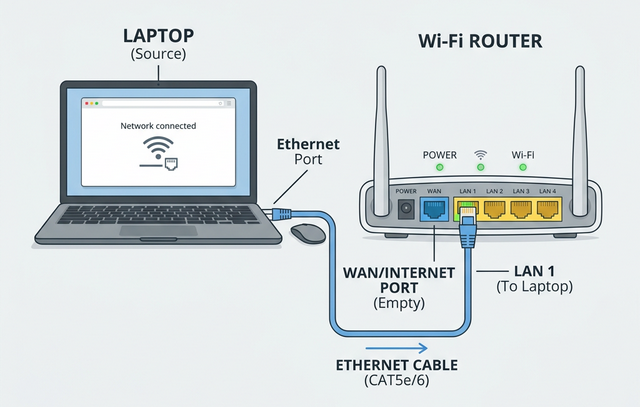
- Wired Connection: If you are using a desktop computer without a wireless card, or if you can't use wifi because you forgot the password, you can choose a wired connection. The method is very simple: get an Ethernet cable, plug one end into your computer's network port, and the other end into a LAN port (usually yellow, labeled with numbers like 1, 2, 3) on the back of your wifi router. The computer will automatically obtain network access after connecting the cable.
Note: The WAN port is usually blue and is used to connect to the modem (Internet access). However, the ports on many new routers are dynamically adaptive, which means the Ethernet cable can be identified normally no matter which port it is plugged into. In addition, to avoid conflicts and interference during configuration, it is recommended to temporarily unplug the network cables connecting other devices (including the modem) to the router during initial setup, keeping only the cable you are currently using for configuration.
Step 2: Find the Wifi Router's IP Address
Every wifi router has a default gateway IP address. Most common brands use the following IP addresses:
192.168.1.1192.168.0.110.0.0.1192.168.31.1
If you are unsure, you can check your network connection details on your computer or phone to get the IP address of the "Default Gateway" or "Router".
Step 3: Login to the Wifi Router Admin Page
Open your preferred browser (such as Chrome or Safari), enter the IP address obtained in the previous step (e.g., http://192.168.1.1) in the address bar, and press Enter.
A login window will pop up asking for a username and password.
- Default Credentials: Common combinations include the username
admin, passwordadminorpassword, or leaving the password blank. - Router Back Label: You can check the sticker on the bottom or back of your wifi router, which usually has the default admin account information printed on it.
- If you changed your password before but forgot it, you may need to restore the wifi router to factory settings by pressing and holding the Reset button on the router.
What Can You Configure on the Admin Page?
After successfully logging into the wifi router admin page, you will have total control over your home network. Here are some of the most commonly used and critical settings:
1. Change Wifi Name (SSID) and Password
This is the main reason most people log into the admin page. You can change the default, hard-to-remember wifi network name to something you like, and set a new, more secure wifi password to prevent others from piggybacking on your network.
2. Change Admin Login Password
For your network security, it is recommended to immediately change the router's admin login password after the first login to avoid using the default admin and prevent unauthorized access.
3. Set Up Parental Controls
Modern wifi router admin pages usually offer parental control features. You can restrict the times specific devices can access the network, or block unhealthy or inappropriate website content to protect your children online.
4. Create a Guest Network
A guest network is an independent wifi signal specifically prepared for visitors. It only allows guests to access the internet, but not your home's local LAN devices (such as shared folders, smart TVs, or printers), which greatly improves the security of your main home wifi network.
5. Port Forwarding and Advanced Settings
For gamers or users who need to access home NAS and servers from outside, you can set up port forwarding on the admin page. In addition, you can perform a firmware upgrade to ensure your wifi router is in optimal performance and security status, and obtain the latest feature updates.
Conclusion
Logging into your wifi router admin page is not hard at all! As long as you find the correct IP address and login admin password, you can easily manage your home network environment and enjoy a faster, more secure wifi experience. If you encounter any connection issues, don't forget to check your wifi router's official manual.